
We want everyone to have a pleasant experience purchasing tickets, and we want to make sure members can take full advantage of their early access to tickets! And if you're not a member yet...
It's true–things look a little different around here.
We launched a new website in fall 2018, but your login info remains the same! If you're a CHF member, please be sure to log in with the email address that's associated with your membership.
If you're new, welcome! Please create a new account.
Follow these steps to login, verify your account and membership status, and purchase tickets:
1) Log in to your account.
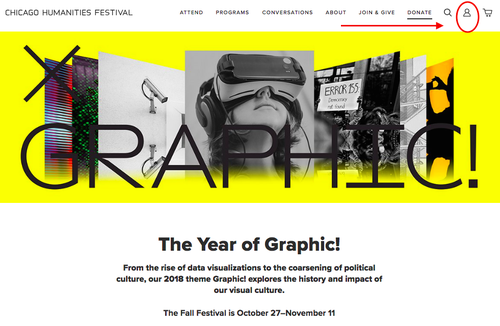
From anywhere on chicagohumanities.org, click the person-shaped login icon on the top right corner of your screen.
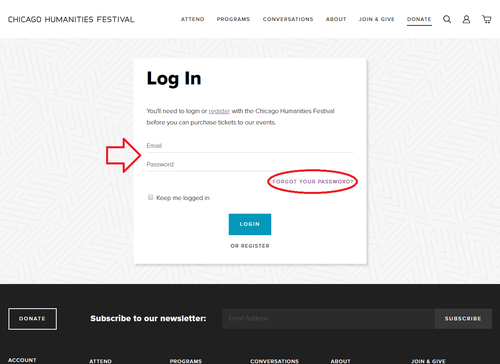
Enter your email and password in the appropriate fields, then click "Login." If you don't remember your password (we've all been there), click on "Forgot Your Password" to reset it. You will be prompted to enter your email address, and will receive a link to reset your password in your email inbox.
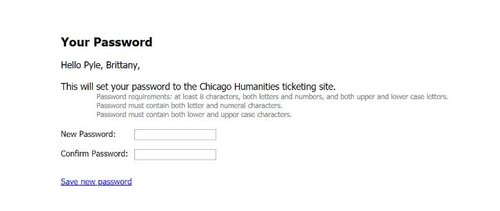
The link in your password recovery email will take you to the page below. Choose a new password, then click "Save new password." Your password will then be updated, and you can log in.
2) Verify your membership level and status.
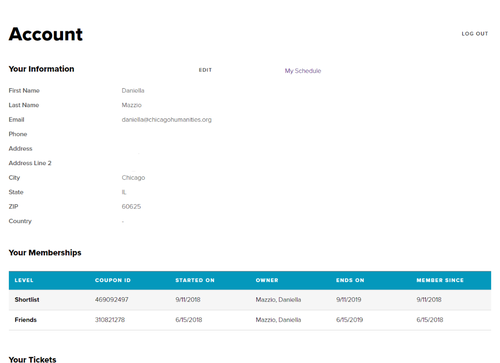
Once you're logged in, you'll see your membership level and status, and can renew your membership easily from here by clicking on the level name (i.e. "Friends"). After your checkout, you can see your purchase history on this screen later as well.
3) Browse programs and add tickets to your cart!
Once you're logged in, click "Attend" at the top of the screen, and then "Calendar of Events" to view the full list of programs. You can browse all the programming at once, or sort programs by neighborhood, venue, or subject. You can even switch the type of calendar view to see the lineup day by day.
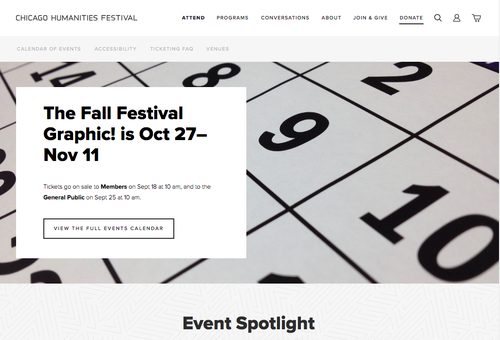
When you're ready to add an event to your cart, click the program name, or in full calendar view, hover your mouse over the event tile and click "Buy tickets."
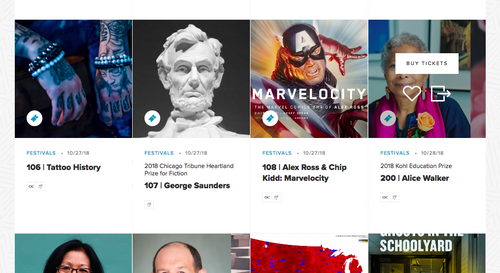
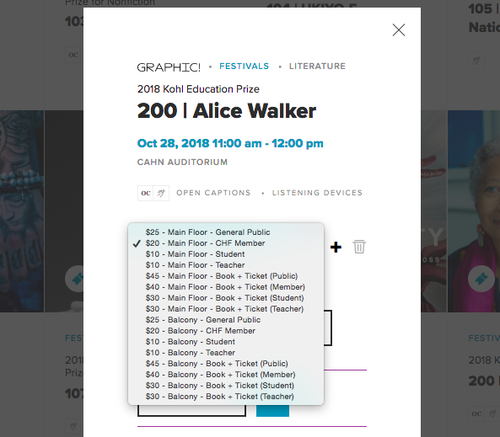
Select the ticket type from the drop down list of options and enter the quantity you'd like in the box.
MEMBERS: PLEASE BE SURE TO SELECT MEMBER PRICE TICKETS WHEN ADDING TO CART!
Please note: Members are limited to 4 Member price tickets per event. If you'd like additional tickets, click the plus sign + to the right and you may add General Public price tickets to your cart as well.
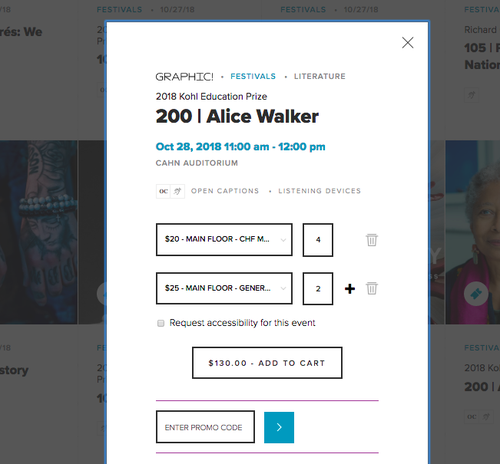
When you're ready to check out, you may click "go to cart" or click the cart icon in the top right corner of your screen.
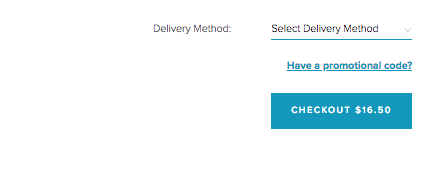
After you enter your billing and credit card information, be sure to select a delivery method for your tickets.
This field is required to complete the check out process, so we know how to handle your tickets!
Print at home: tickets will be emailed to you as a PDF attachment.
Will call: pick up your tickets at the event.
Mail: Printed paper tickets will be mailed to the address you enter as "delivery address."
If you need further help navigating the website, please call the Box Office at (312) 605-8444.
Please note that we experience a high volume of calls during on sale days, so you can also try these common fixes:
- First, if you're a member and not able to add tickets to your cart, be sure that you have logged in with the email address associated with your membership.
- Try quitting and re-opening your browser.
- Log out of your account and log back in again.
- Clear your browsing data and cache.
- Try a different browser (we recommend the latest version of Chrome)
If you choose to call the Box Office, please be prepared to describe the action you were trying to take, the browser and operating system you're using, and any details related to your CHF account and membership status.
Thank you for supporting the Festival! We're looking forward to seeing you throughout the fall.
Box Office: (312) 605-8444
Become a Member
Being a member of the Chicago Humanities Festival is especially meaningful during this unprecedented and challenging time. Your support keeps CHF alive as we adapt to our new digital format, and ensures our programming is free, accessible, and open to anyone online.
Make a Donation
Member and donor support drives 100% of our free digital programming. These inspiring and vital conversations are possible because of people like you. Thank you!